

Finding your proxy server address is essential for troubleshooting network issues, configuring applications, or verifying your network setup. A proxy server acts as an intermediary between your device and the internet, so knowing its address and port number helps ensure your connection is configured correctly. This guide walks through locating proxy settings on all major platforms, including Windows, macOS, Linux, Android, iOS, and popular web browsers.
Windows 10 and 11
Windows provides multiple ways to view proxy configuration. Here are the most reliable methods for finding your proxy server address.
Using Windows Settings
Open the Settings app by clicking the Start menu and selecting the gear icon. Navigate to Network & Internet, then click Proxy in the left menu. This screen displays your proxy setup details:
- Automatically detect settings: When enabled, Windows uses WPAD to auto-discover proxy settings. A proxy script may be in use, but no fixed address appears here.
- Use setup script: If enabled, a script address (URL) will be displayed pointing to a Proxy Auto-Configuration (PAC) file. Opening this URL in a browser reveals the actual proxy server address it defines.
- Manual proxy setup: When Use a proxy server is enabled, the proxy IP address and port appear directly. For example, something like 192.168.1.100:8080 as Address:Port.
Copy or note down the proxy IP and port if listed. If everything is disabled, your PC is not using a proxy on that network.
Using Command Prompt
Press Win + R, type cmd, and hit Enter. Run the following command:
netsh winhttp show proxy
This displays the system’s proxy settings used by WinHTTP. If a proxy or auto-config URL is set at the system level, it appears here. Output like http=myproxy.company.com:8080 indicates a configured proxy. The message “Direct access (no proxy server)” means no system-wide proxy is set.
Using Internet Options
Press Win + R, type inetcpl.cpl, and press Enter. Click the Connections tab, then LAN Settings. In the LAN Settings dialog:
- A checked Use a proxy server for your LAN option displays the proxy Address and Port.
- Checked Automatically detect settings or Use automatic configuration script indicates automatic configuration is in place.
- If no options are checked, no proxy is configured for your LAN.
In corporate or school environments, proxy settings may be enforced via Group Policy, making fields greyed out or pre-filled by administrators.
macOS
On macOS, proxy settings are part of the Network configuration in System Preferences (or System Settings on newer versions).
Open System Settings from the Apple menu. Select Network in the sidebar, then choose your active network interface (Wi-Fi or Ethernet). Click the Details button (on macOS Ventura or later) or Advanced on older versions. Navigate to the Proxies tab.
Here you will see proxy protocol options: Web Proxy (HTTP), Secure Web Proxy (HTTPS), FTP Proxy, SOCKS Proxy, and Automatic Proxy Configuration. Understanding the differences between SOCKS and HTTP proxies helps when selecting the appropriate protocol.
- Automatic Proxy Configuration when checked shows a URL for the proxy auto-config (PAC) script. The actual proxy details are defined within that script.
- Specific proxy types (HTTP, HTTPS, FTP, SOCKS) when checked display the Proxy Server address and Port fields on the right side.
- If nothing is checked, no proxy is in use.
For a quick terminal check, run:
networksetup -getwebproxy Wi-Fi
This returns Web Proxy (HTTP) settings for the Wi-Fi network. Replace “Wi-Fi” with the interface name if needed. Use -getsecurewebproxy for HTTPS or -getautoproxyurl for any PAC script URL.
Linux (Ubuntu and Others)
Linux systems can have proxy settings at the system level (especially on desktop environments) or at the application level.
Ubuntu Desktop (GNOME): Open Settings and go to Network. Scroll down or select Network Proxy. If set to Manual, the proxy address and port will be visible for each protocol type.
Environment Variables: Open a terminal and run:
echo $http_proxy
This prints any proxy address set for HTTP traffic. Similarly check https_proxy, ftp_proxy, and other related variables. These usually contain a URL or IP and port (e.g., http://proxy.company.com:8080). Empty variables may indicate no global proxy is set. Note that applications like package managers or browsers can have their own proxy settings independent of these variables.
Config Files: Some distributions store proxy settings in /etc/environment or /etc/apt/apt.conf for the apt package manager. These files may contain lines like http_proxy=http://proxyaddress:port.
If no proxy is configured in GUI or environment, the system is likely connecting directly.
Android Devices
Android supports proxy settings on Wi-Fi connections, not on cellular data. Settings locations vary slightly by version or manufacturer.
Open the Settings app and tap Network & Internet (or Connections on some devices), then tap Wi-Fi. Tap your connected Wi-Fi network name to open its details. You may need to long-press or tap a gear icon next to the network.
Scroll down to find Advanced options. Look for Proxy, which will typically be a dropdown set to None, Manual, or Proxy Auto-Config.
- None: No proxy is being used on this Wi-Fi network.
- Manual: The Proxy hostname (or IP address) and Proxy port fields display the server’s details. For example, proxy.school.edu and port 3128.
- Proxy Auto-Config (PAC): A field shows the PAC URL. The actual proxy address is determined by that script.
The proxy setting is per Wi-Fi network. Switching networks may mean different proxy configurations. Android does not use these settings for mobile data by default. Managed devices may have administrator-set proxies that cannot be changed manually.
iOS and iPadOS
On iPhones and iPads, proxy settings are configured per Wi-Fi network.
Open Settings and tap Wi-Fi. Find your active Wi-Fi network and tap the info (i) icon next to it. Scroll to the bottom to find the HTTP Proxy section.
The configuration will show either Off, Manual, or Auto:
- Off: No proxy is being used (default for most home networks).
- Manual: The Server and Port fields display the proxy server address and port number. Authentication credentials may also be set here.
- Auto: A URL field contains the address of a Proxy Auto-Config script. The device uses that URL to automatically configure the proxy.
iOS only uses these proxy settings for Wi-Fi networks, not cellular data. Proxies are more common in corporate, school, or other managed Wi-Fi networks.
Checking Proxy Settings in Web Browsers
Most browsers use the operating system’s proxy settings, while Firefox can maintain its own configuration. For easier proxy management, consider using a browser extension for proxy management.
Google Chrome
Chrome uses the OS proxy settings and shortcuts to system configuration. Open Chrome, click the three dots menu, and choose Settings. Search for “proxy” and click Open your computer’s proxy settings. This opens the Windows or macOS proxy settings, where any configured proxy will be listed.
Mozilla Firefox
Firefox maintains its own proxy configuration separate from the system. Open Firefox, click the menu icon, and select Settings. Scroll to Network Settings and click Settings. The Connection Settings dialog shows options including No Proxy, Auto-detect proxy settings, Use system proxy settings, or Manual proxy configuration.
With Manual configuration selected, the HTTP/SSL proxy address and port appear in the fields. A Proxy Auto URL field shows any PAC URL in use. When Use system proxy settings is selected, Firefox defers to the OS proxy.
Microsoft Edge
Edge follows system proxy settings like Chrome. Open Edge, click the three dots menu, and choose Settings. Click System and Performance, then Open your computer’s proxy settings. The system proxy dialog opens where any manual proxy IP and port or PAC URL will be visible.
Apple Safari
Safari relies on macOS network settings. Open Safari, click Safari > Settings, go to the Advanced tab, and click Change Settings next to Proxies. This opens the Mac’s Network settings dialog, showing any proxy address configured for different protocols.
Automatic vs. Manual Proxy Settings
Understanding the difference between automatic and manual configurations affects how proxy addresses are retrieved.
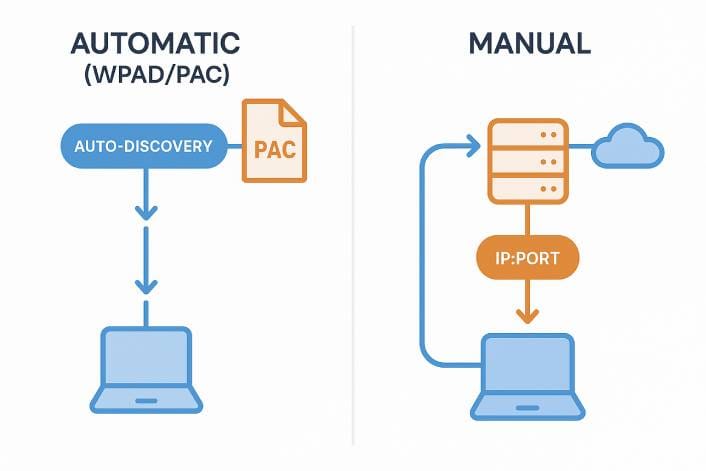
Manual Proxy: A specific proxy server address and port are entered on the device. Proxy providers such as Decodo supply these details when you purchase their service, typically including the server hostname, port number, and authentication credentials. The server address (hostname or IP) and port number are directly visible in settings. Recording both the address and port is straightforward.
Automatic Proxy: This refers to Auto-Detect (WPAD) or Automatic Configuration Script (PAC). No direct proxy server IP typically appears in settings.
- Auto-Detect/WPAD: The system finds a PAC file on the network automatically. Windows shows “Automatically detect settings” enabled without displaying an address.
- Auto-Config URL: A URL (usually ending in .pac or .dat) points to a script. The proxy address is defined within that script’s logic, which may route different URLs through different proxies.
To identify which is in use: visible server and port means manual configuration. A URL or just an auto toggle without an address indicates automatic configuration. In automatic mode, use command-line tools or examine the PAC file to find actual proxy addresses.
Finding Proxy Addresses on School and Office Networks
When connected to school or office networks, proxies are often set by the organization for content filtering or security.
Check the Settings First: Even in managed networks, proxy info often appears in device proxy settings. Go through the steps for your OS and check for a manual proxy address or auto-config script URL.
Proxy May Be Enforced: If the computer is managed (domain-joined or under MDM), proxy settings may be locked. Settings can be viewed but not edited. Try command-line methods like netsh winhttp show proxy on Windows or networksetup commands on Mac to retrieve any configured proxy.
Contact the Network Administrator: When proxy details are not visible but suspected (blocked sites or proxy login prompts), the IT administrator can provide the proxy address or PAC URL. Some environments use transparent proxies at the network level with no configurable setting on devices. Always follow legal proxy practices when using proxies on organizational networks.
Wrap Up
Knowing how to find your proxy server address on each device is key to diagnosing connectivity problems and configuring software correctly. If you follow the steps for your platform and see no proxy configured, your connection is likely direct. If a proxy is listed, that information can be used for troubleshooting or application setup.
Automatic configurations may require examining a PAC file or getting information from IT. By understanding where to look across Windows settings, Mac System Settings, mobile device menus, and browser options, finding any proxy server addresses that devices or networks are using becomes straightforward.